 Lykta
LyktaOne click
Click the icon to turn it on or off. Right-click for options. A lit lantern means your Mac stays awake.

A lantern in your menu bar. One click on, one click off — with an optional timer and nothing else to configure.
Requires macOS 13 or later · Universal, native on Apple silicon and Intel
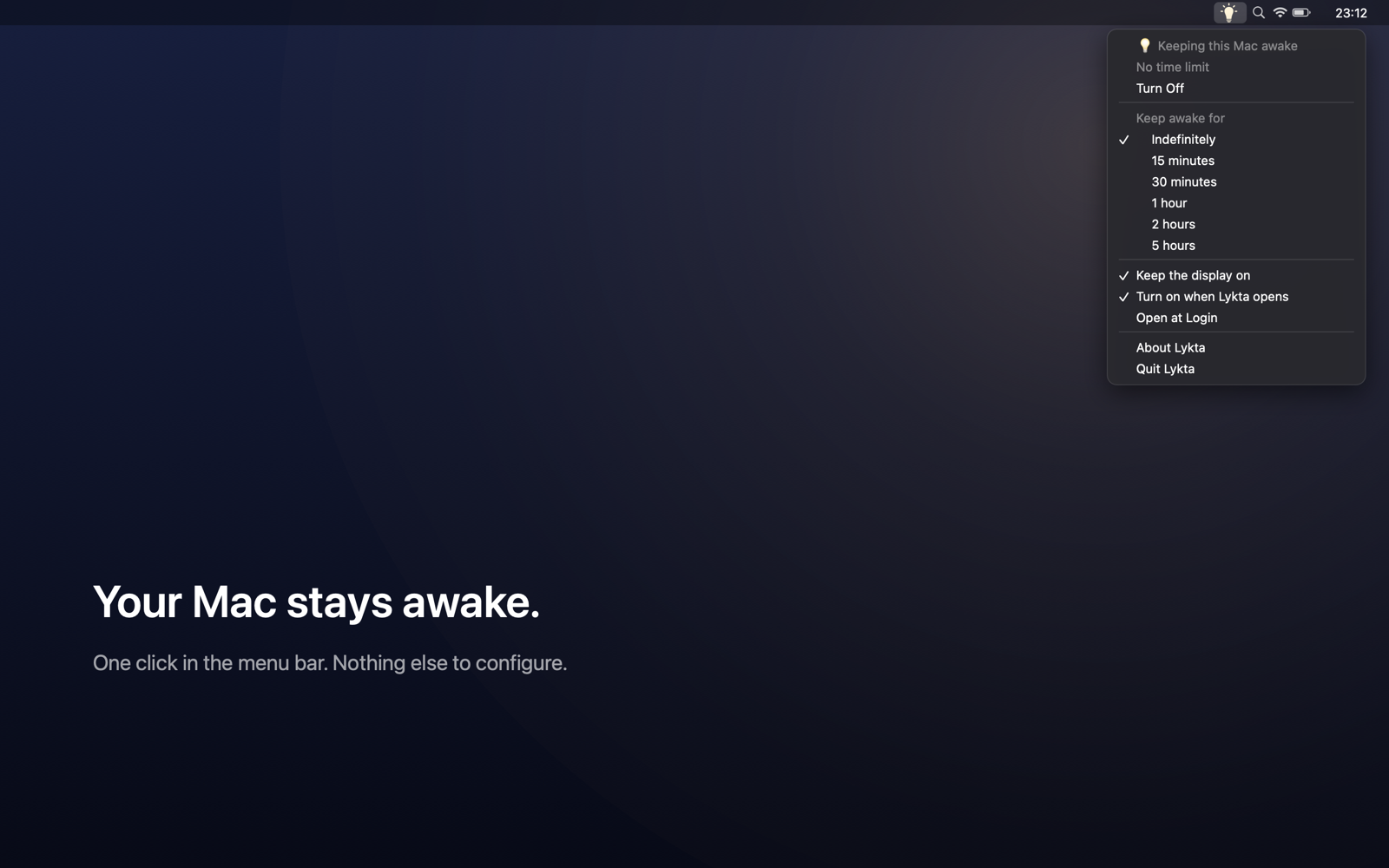
Click the icon to turn it on or off. Right-click for options. A lit lantern means your Mac stays awake.
Indefinitely, or 15 minutes to 5 hours. Pick a duration and the countdown appears next to the icon — it turns itself off when time is up.
Optionally keeps the screen on and stops the screen saver. Handy for presentations, long calls, or reading without touching the keyboard.
No Dock icon, no windows, no network access. It can open at login and turn itself on, so you never think about it.
Lykta uses IOKit power assertions — the mechanism macOS provides for exactly this, and the same one behind the system's own caffeinate tool.
It does not change your Energy Saver settings, install extensions, run background daemons, or jiggle your mouse. Turn it off or quit, and your Mac returns to its normal behaviour immediately.
You can verify what it is doing at any time from Terminal:
pmset -g assertions | grep LyktaLykta prevents idle sleep. It will not stop your Mac from sleeping when you close the lid or choose Sleep from the Apple menu — those are explicit instructions from you, and overriding them would be rude.
No. Closing the lid is an explicit sleep instruction, and Lykta deliberately does not override it. Use an external display setup if you need clamshell mode.
Lykta itself uses effectively nothing. But a Mac that stays awake — especially with the display on — uses more power than one that sleeps. That is the trade you are making, so the timer is there for when you only need it for a while.
It uses the same underlying mechanism, with a menu bar switch, a timer with a visible countdown, and separate control over the display. If you are happy typing caffeinate into a Terminal, you may not need Lykta at all.
Only if you ask it to. Turn on “Open at Login” in the menu, and optionally “Turn on when Lykta opens” so it is active from the moment you sign in.
In macOS user defaults under com.nakytec.lykta, on your Mac. Nothing is synced or sent anywhere.